How to Free Up Space on iPhone Without Deleting Your Real Photos
Your camera roll isn't full of memories — it's full of duplicates, blurry shots, and screenshots you forgot about. Here's how to find and clear them in minutes, without touching the photos you actually want.
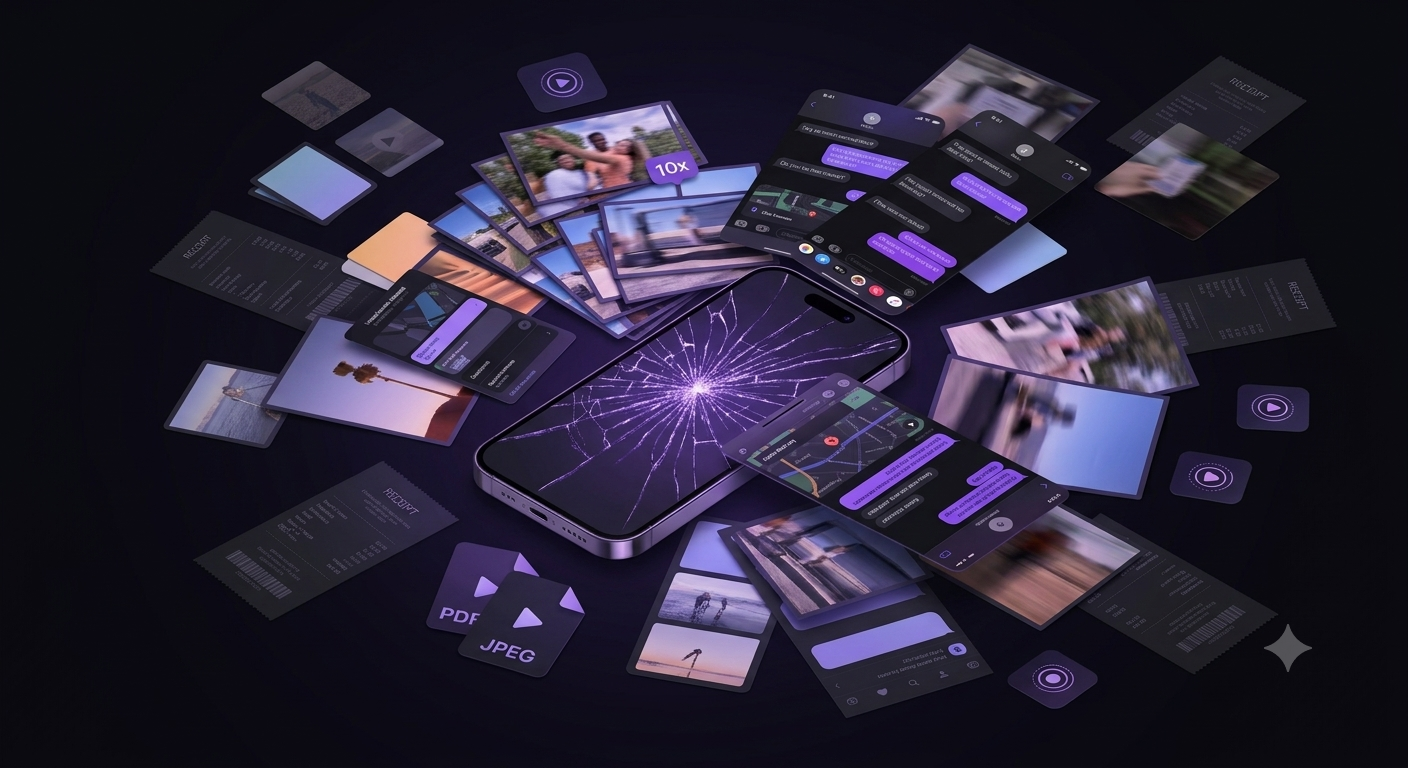
If your iPhone keeps warning you that storage is almost full, the fix usually isn't "delete your photos." It's finding the photos you never wanted in the first place.
Most camera rolls are only about 20–30% photos you'd actually miss. The rest is duplicate bursts, near-identical shots, blurry misfires, and years of screenshots you meant to delete the same day you took them. Clearing those first can free up multiple gigabytes without you giving up a single real memory.
Why your storage fills up faster than you think
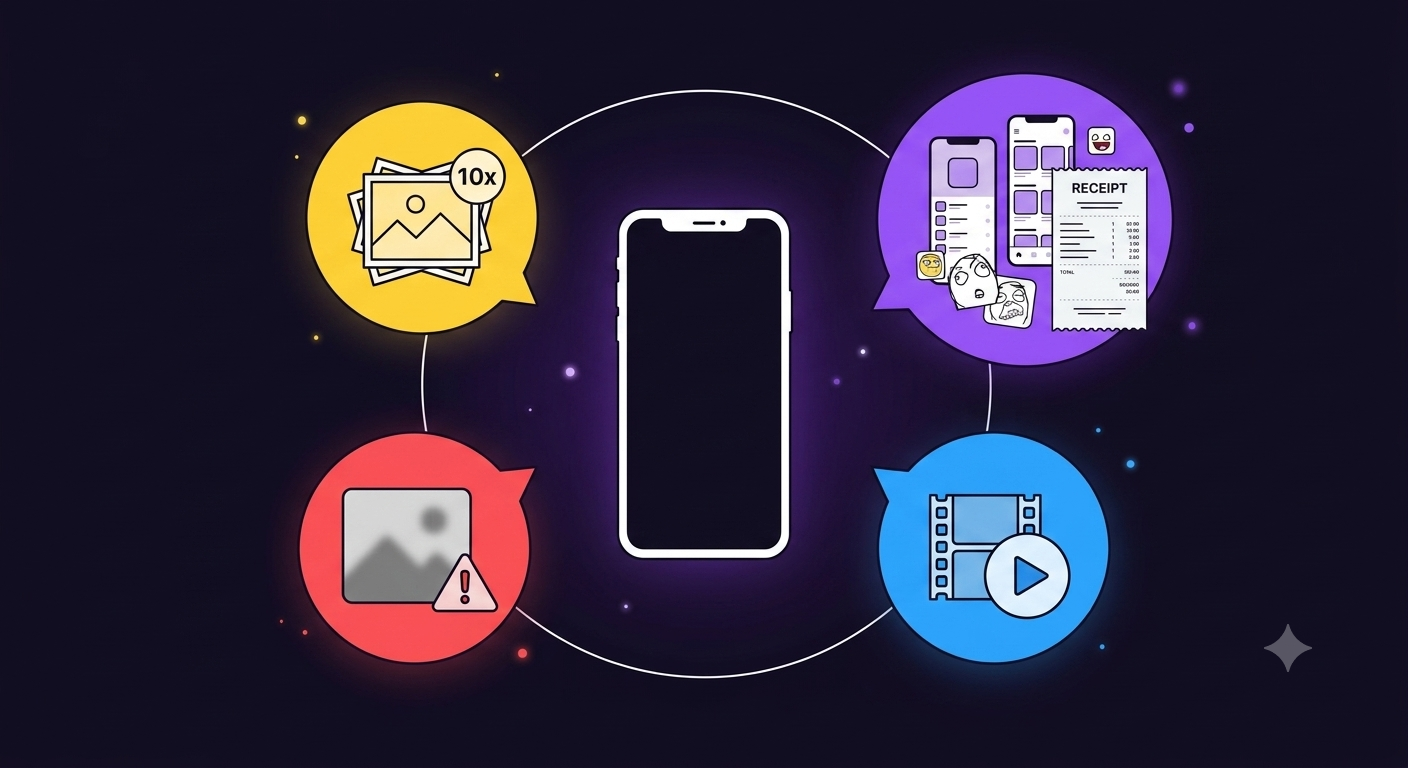
A few habits quietly eat through iPhone storage:
- Burst mode and Live Photos — one tap can create 5–10 near-identical images
- Screenshots — directions, receipts, memes, and chats pile up and rarely get deleted
- Duplicate imports — AirDrop, WhatsApp saves, and cloud syncs often create copies of photos you already have
- Blurry or accidental shots — pocket photos, failed action shots, test shots before the "real" one
None of these are photos you're attached to. They're just taking up space while you scroll past them.
Check what's actually using your storage
Before deleting anything, see where your space is going:
- Open Settings
- Tap General → iPhone Storage
- Wait for the bar to load, then look at the Photos entry
If Photos is one of your largest categories, most of that is very likely fixable without losing anything meaningful. Apple's built-in tools can help a little here, but they weren't built to do the heavy lifting — they show you the problem more than they solve it.
The manual way (and why it's slow)
You can go into the Photos app, open Duplicates or Recently Deleted, and manually review everything yourself. This works, but it has two problems:
- It's tedious. Comparing near-identical burst shots one by one, at a glance, on a small screen, takes real time and real attention.
- It misses categories. Apple's Duplicates view only catches exact or near-exact duplicates — it doesn't group your screenshots, doesn't flag blurry photos, and doesn't help you compress Live Photos that are still full quality months after you'll ever watch them.
If you've got a few hundred photos, this is manageable. If you've got 10,000+, it isn't.
The faster way: let on-device AI do the sorting
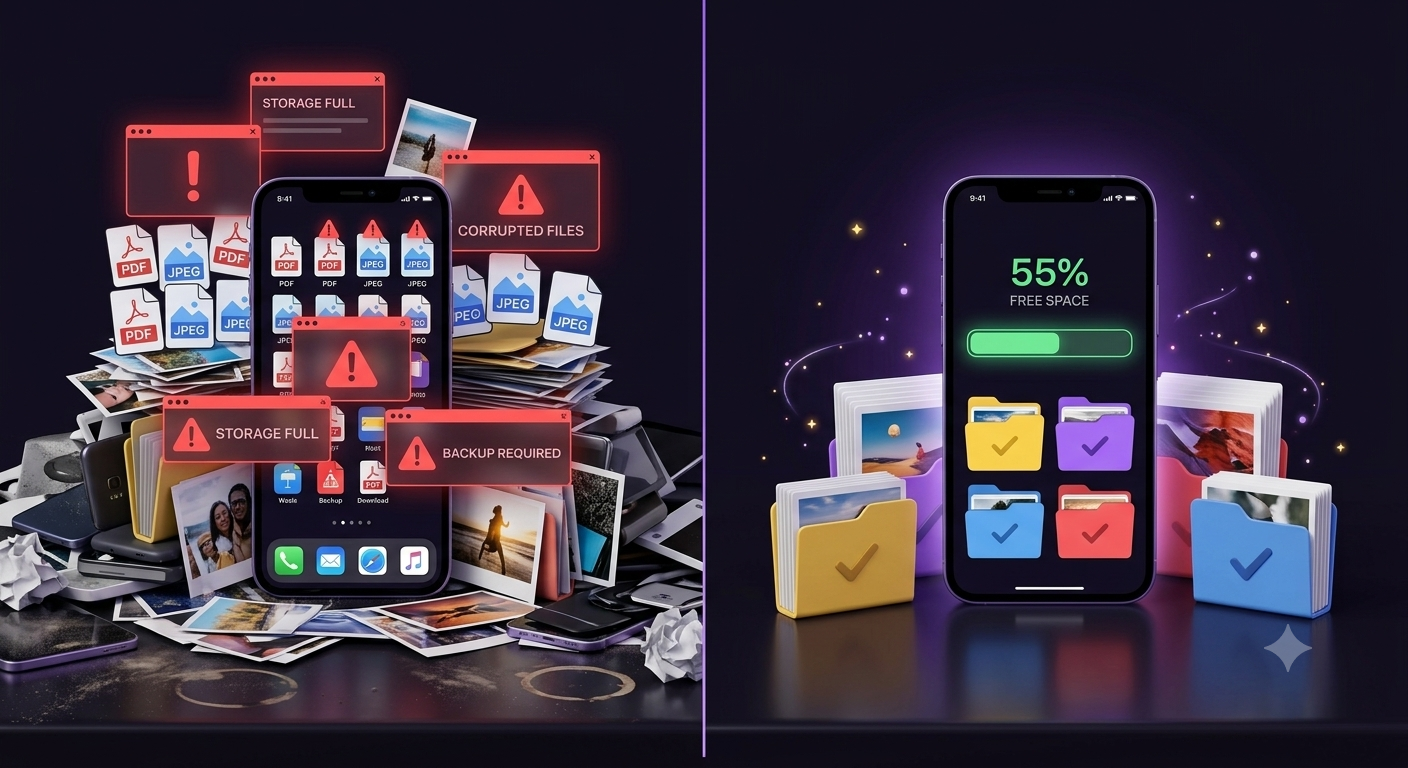 This is exactly the gap Unpile is built for. Instead of scrolling through your camera roll yourself, Unpile scans your library and groups the clutter into categories you can review at a glance:
- Similar Photo Finder — groups near-duplicate and burst shots so you pick the best one and clear the rest
- Screenshot Sweeper — finds every screenshot in seconds, so you're not hunting through months of chat and browser captures
- Blur Guard — flags out-of-focus or accidental shots that would otherwise sit in your camera roll forever
- Live Photo Slimmer — shrinks Live Photos down without losing the still image, for the ones you'll never actually watch back
Everything runs 100% on your iPhone — no uploads, no cloud processing, no account required. Your photos never leave your device, and nothing is deleted without you reviewing it first.
A realistic cleanup routine
If your storage is genuinely full right now, this order gets you the most space back the fastest:
- Clear duplicates first — this is usually the single biggest category
- Sweep screenshots next — low emotional attachment, high volume
- Review blurry shots — quick to scan, easy to approve in bulk
- Compress remaining Live Photos — smaller wins, but they add up over a large library
Most people find several gigabytes in the first two steps alone, before they've had to make a single hard decision about a photo they actually care about.
You shouldn't have to choose between memories and storage
The photos worth keeping aren't the problem. It's everything sitting quietly behind them — the duplicates, the screenshots, the almost-photos — that's actually filling up your phone. Clear those out first, and "storage full" stops being a recurring problem.
Unpile is built to make that first pass effortless: scan, review, and free up space in minutes, entirely on your device.
Stop losing storage to
clutter you don't need.
Get Early Access100% on-device. No uploads. No tracking.